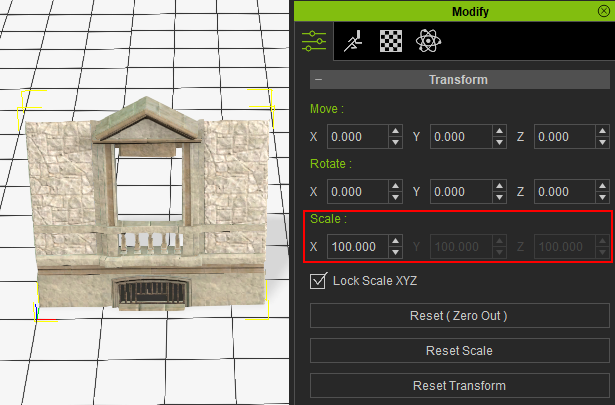
Resizing unit dimensions
The Unit Size dictates the width and depth of each unit in building creation. Different component sources may have varying sizes. Hence, it's crucial to ensure that your building components align with the unit size.
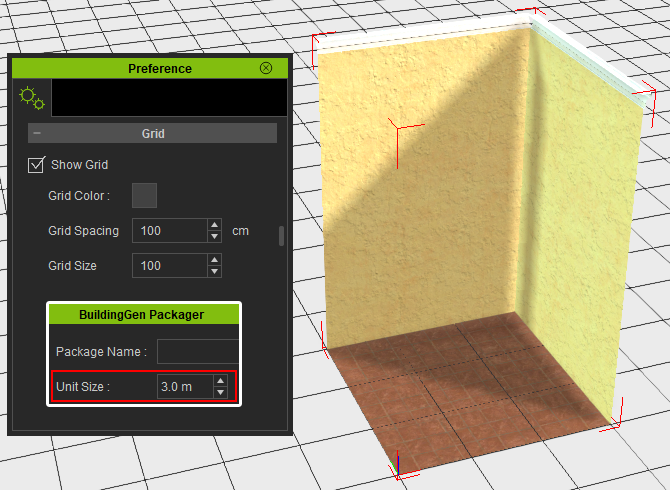
Unit Size dimensions can be adjusted from 0.1 m to 10.0 m
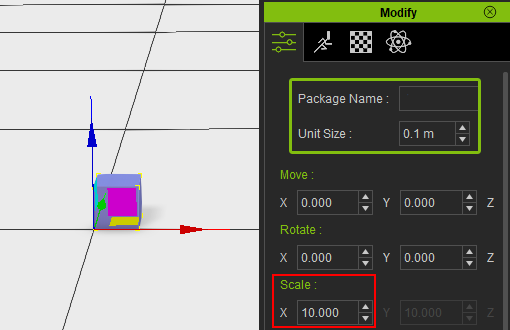 | 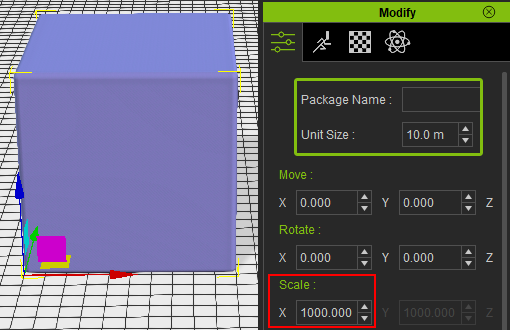 |
Unit Size 0.1m | Unit Size 10.0m |
 Note:
Note:
Different building styles and types may require different unit sizes. For example, city houses are recommended to use a Unit Size of 3.0m and flats use a Unit Size of 5.0 m.
A city house using a 3.0m unit size: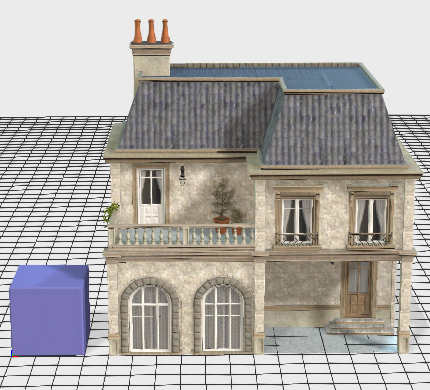
Flats using a 5.0 m unit size: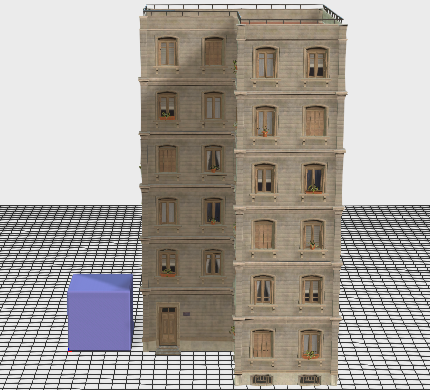
Using the grid to measure component sizes
You can use iClone’s grid system to achieve precise alignment of parts and child elements based on decimal numbers for the unit sizes. This feature will help you align elements with the specified unit sizes more effectively, without having to eyeball the measurements.
- Activate Preference > Grid > Show Grid.
- Based on the Unit Size setting you have in the BuildingGen Packager, adjust the Grid Spacing accordingly.
- After the setting is complete, the grid in the viewport will update automatically.
- Use the 3d gizmo to adjust your building component's dimension to your desired settings on the newly updated grid.
- After completing your adjustments for your component, select it and go to Modify > Transform > Reset Transform to save your newly adjusted scale.
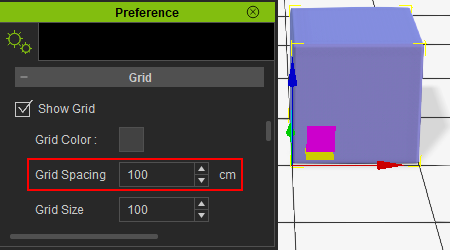
The default Grid Spacing setting is 100cm, which is equivalent to 1.0 m unit size.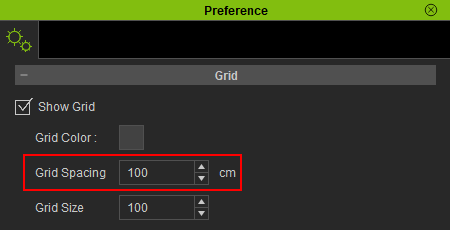
It is recommended to use a Grid Spacing of 100 cm for Unit Size when working with whole numbers.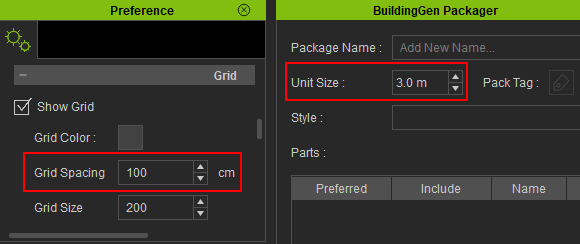
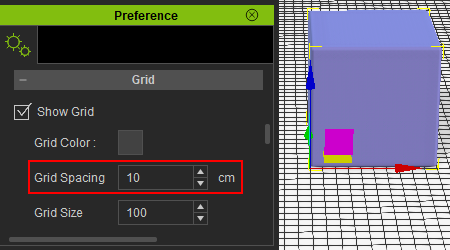
For Unit Size with decimal numbers, it is recommended to use a Grid Spacing of 10 cm.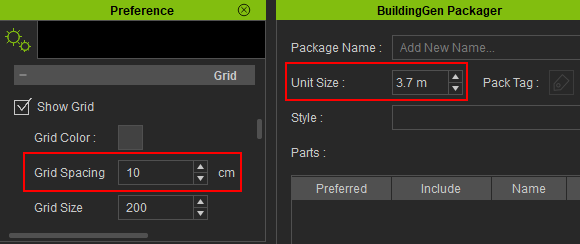
|
|
|
Grid Spacing of 100 cm |
Grid Spacing of 10 cm |
Adjust the wall size from 4.5 m to 3.0 m, using a 100 cm Grid Spacing setting.
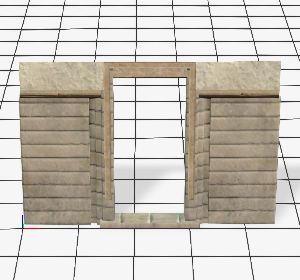 | 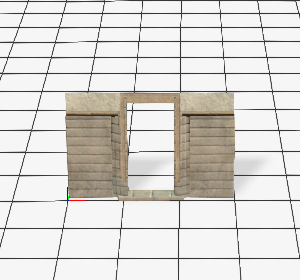 |
Before adjustment, the wall size includes decimal numbers. | After adjustment, the wall size is represented in whole numbers. |
Adjust the wall size from 3.0 m to 3.5 m, using a 10 cm Grid Spacing setting.
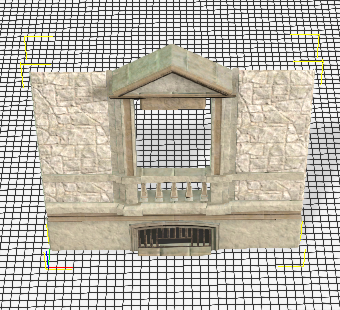 | 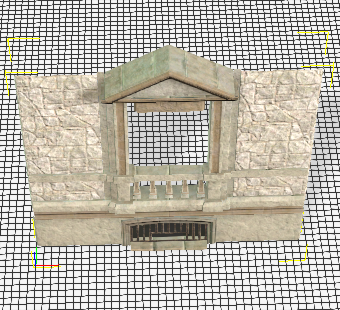 |
Before adjustment, the wall size is represented in whole numbers. | After adjustment, the wall size now includes decimal numbers. |
Before saving the newly adjusted scale settings: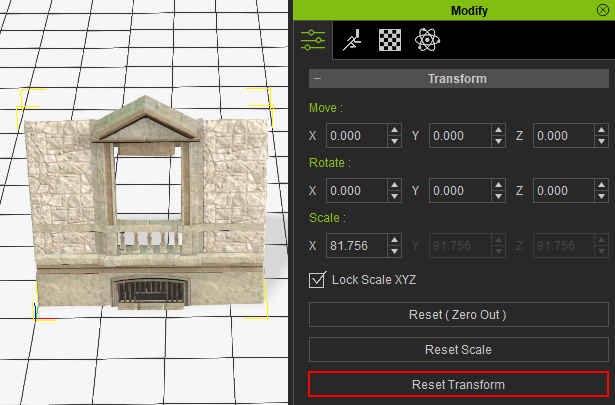
After saving the newly adjusted scale settings: